Microsoft Purview DLP, Part 2: How to Move from Labels to Enforcement
Sensitivity labels tell people and systems what content is. Data Loss Prevention is where you decide what happens when someone tries to share it, move it, or use it in a way that should raise eyebrows.
I think this is where a Microsoft Purview rollout starts feeling real. Labels can stay politely theoretical for a while. DLP cannot. The moment policy tips, blocks, overrides, and alerts appear in front of users, the project stops being a classification exercise and becomes an operating model question. I mean that you can endlessly label different objects to make reports look nice, but you eventually need to actually protect the labeled data.
This post is Part 2 of my practical Microsoft Purview implementation series. If the groundwork is still fuzzy, start with the pre-implementation post first. If labels are not in place yet, Part 1 should come before this one.
It´s also good to run labels only in the environment for a while so that the label coverage is wide enough. It might also be a good idea to start requiring labels on documents before going forward with DLPs.
Skip to the good part
- Why labels are not enough on their own
- Where DLP actually fits
- How I would design the first DLP policies
- Why simulation should come before enforcement
- What users and incident owners need
- Common mistakes
- Crafting Advanced DLPs for different workloads
- Conclusion
Why labels are not enough on their own
Sensitivity labels are foundational, but by themselves they do not stop a user from sharing the wrong file to the wrong place. They add context. DLP is where that context starts driving behavior.
Microsoft’s DLP guidance is quite clear about the problem. Policies can look for sensitive information types, sensitivity labels, and sharing context, and then take actions that differ by workload. In Microsoft 365 locations that can mean blocking access, showing policy tips, allowing overrides, generating alerts, or moving into more restrictive enforcement. Learn about data loss prevention explains that model well.
That is also why I do not like building DLP in isolation. If the organization has not agreed what Confidential means, then using Confidential as a DLP condition is just a faster way to automate disagreement and hit a wall in the project.
Where DLP actually fits
One useful thing about Microsoft Purview DLP is that it is not trapped in a single workload. Microsoft documents DLP locations across Exchange, SharePoint, OneDrive, Teams, devices, and more. Create and deploy data loss prevention policies and Learn about data loss prevention both show how wide that surface can get.
In practical terms, I think about DLP like this:
- Exchange is about messages leaving too easily or files overshared.
- SharePoint and OneDrive are about files being overshared, copied, or exposed to the wrong audiences.
- Teams is about sensitive information moving through chat and channels faster than people think.
- Devices are about exfiltration paths such as USB, clipboard, printing, or unallowed apps.
That does not mean you should confgure DLPs for every location on day one. It means you should know which user behavior you are trying to change first.
For many organizations, the first DLP scenarios are still pretty ordinary:
- Stop external sharing of highly sensitive files
- Warn or block email that contains regulated data
- Stop users from pasting or copying protected content to the wrong place
- Create alerts when users repeatedly try to override policy
Ordinary is good here. Ordinary is supportable.
How I would design the first DLP policies
Microsoft recommends planning DLP around business intent instead of trial and error, and I think that is exactly right. Plan for data loss prevention and Design a DLP policy exist for a reason.
I would also use the principle of doing simple DLPs per workload rather than creating one policy for all. This is just to make policies clearer to manage and even though you will ultimately have more policies, they all do a specific and thought out things.
My default starting pattern would be something like this:
- separate email policies from site and file-sharing policies
- use the smallest number of high-value scenarios first
- prefer label-based conditions where the label model is already trustworthy
- use sensitive information types where the signal is clearer than the label coverage or use them as policy tips for users in a way of “There might be this and that, you might want to use a label X”
- decide early where override is acceptable and where it is not
I also like writing a short intent statement for every policy before building it. Something like:
- If content is labeled
Highly Confidential, block external sharing in SharePoint and OneDrive. - If email contains regulated financial data, warn first and then block depending on volume or confidence.
- If protected content is copied to removable media, alert and restrict depending on user group and device context.
That sounds almost too simple, but simplicity is the point. If the intent cannot be explained in one or two sentences, the policy usually needs more design work before it needs a portal screen.
Why simulation should come before enforcement
This is one of the best parts of Microsoft’s DLP deployment guidance. It describes a progression from policies being off, to simulation mode, to simulation with policy tips, and only after tuning to full enforcement. Create and deploy data loss prevention policies is very explicit about that.
I would follow that path almost every time.
Simulation tells you at least four things:
- whether the policy matches the content you expected
- whether the policy scope is sane
- how much user friction you are about to create
- whether your policy logic reflects the business intent or just looks good in configuration
Then policy tips let you see the user experience before you turn the screws harder.
That sequence matters because DLP is one of the faster ways to lose credibility. If the first policy produces false positives all over finance, sales, or HR, nobody remembers that the policy was technically clever. They remember that it was annoying.
What users and incident owners need
The technical policy is only half the rollout. The other half is deciding what happens when the policy fires.
Users need to know:
- what the policy tip means
- when they can override
- when they should not override
- who to contact when the policy is genuinely blocking work
The response side also needs to be clear:
- who reviews DLP alerts
- which alerts are just noise and which ones need action
- when a repeat violation becomes a manager conversation, a security conversation, or a legal conversation
- how DLP incidents tie back to labels, permissions, and user guidance
This is where I think many organizations discover that DLP is not really a policy problem. It is a triage problem.
If nobody owns the alerts, the rollout is incomplete no matter how polished the rules look.
Crafting Advanced DLPs for different workloads
This is propably a topic worth its own post and a talk at a conference. The possibilities are quite large with each workload supported. I´ll open some of the options here and list the possible Advanced DLP conditions you can use (as of this post is published) to create prevention policies.
The basics of the DLPs is that there is a workload that the policy targets, a scope that it´s applied to and the rules. Rules consist of conditions that trigger the policy and actions that apply when the conditions are met. Rules also definde user notifications, overrides and incident reporting settings. You can have multiple rules in one policy but again, remember that simple is clear and clear is manageable.
Exchange
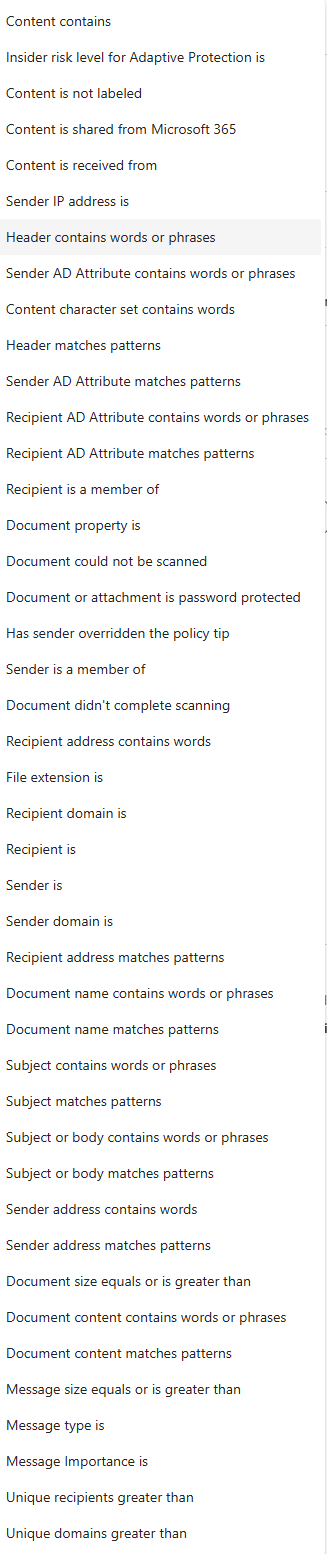
This part shows (in my opinion) that Purview is built on top of Exchange Online. The options for conditions in policy triggering are vast.
The actions for the rule are also quite Exchangesy.
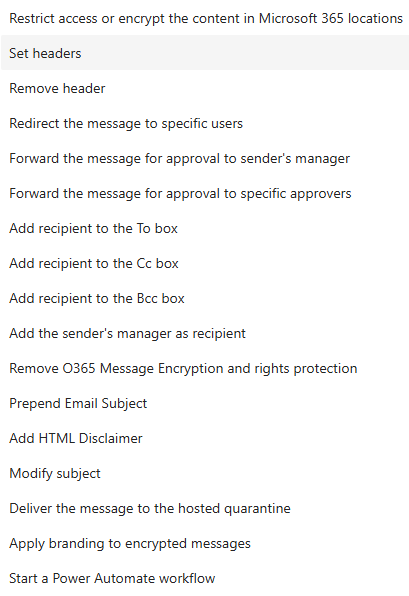
Actions to point out from the list is the basic “non sharing” one “Restrict access or encrypt the content in Microsoft 365 locations”. That fills the basic need for DLPs that mostly comes to light -> “I want that Highly Classified documents cannot be shared externally”.
One that also peaks my interest is “Forward the message for approval…”. This could be used in a creative way for example to have someone/manager approve a message if a policy tip is overridden.
SharePoint Sites & OneDrive
Altough the policies for SharePoint and OneDrive can (and should) be created separately. The conditions within the policy are the same. The still should be created separately since the use case for both platforms are different, for example, it´s in SharePoints name to Share and it should be used for centralized external sharing rather than users sharing straight from their OneDrives. There for the DLP controls are different.
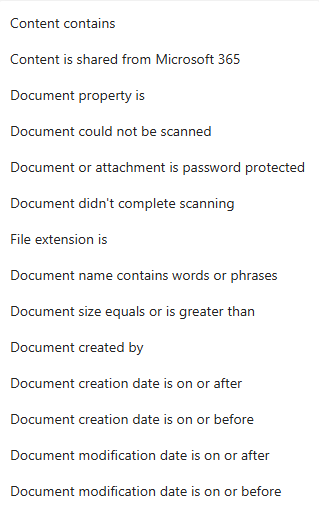
Actions are minimal compared to the Exchange side. There is the “Restric access or encrypt the content in Microsoft 365 locations” and start a Power Automate workflow available.
Good thing to know here is that you can combine conditions and use Content is shared from Microsoft 365 and Internal label to block sharing to outside of organization. Altough this might not work with guest accounts since they are technically in your organization.
Teams
Think of Teams as an extension to Outlook. The same controls should be applied here as in the mail. You might have Teams settings that limit external collaboration but these melt away quite quickly if you have external collaboration configured with large partners.
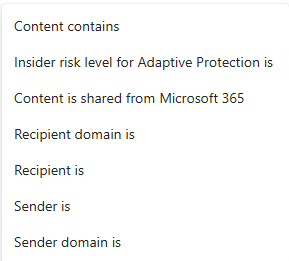
There is only the “Restric access or encrypt the content in Microsoft 365 locations” action available and that makes me think that the main use for Teams DLP is to block external sharing or limit the blast radius of Insider Risk realization.
Devices
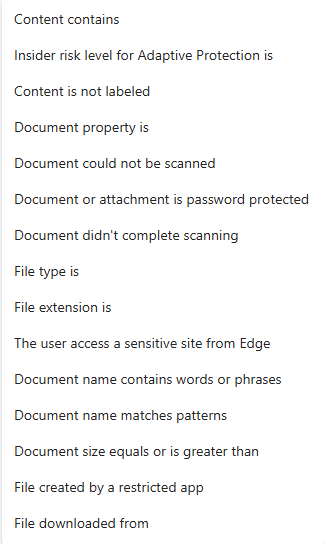
I have heard the sentence “Well what if they just move the files to a USB drive” many times and this is the solution to block that. The conditions for Device DLPs are similar to SharePoint but there are some differences like
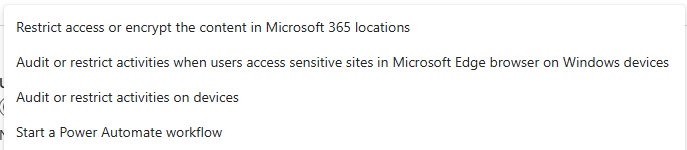
There are a few options for actions on Devices, most notably “Audit or restrict activities on devices”.
Now this is the setting that gets your endpoint to adhere to your data security practises and policies. This is crucial to really take control of the organizations data. I would also recommend to have separate Device DLP policies for different scenarios ton increase manageability again and to have granular policies.
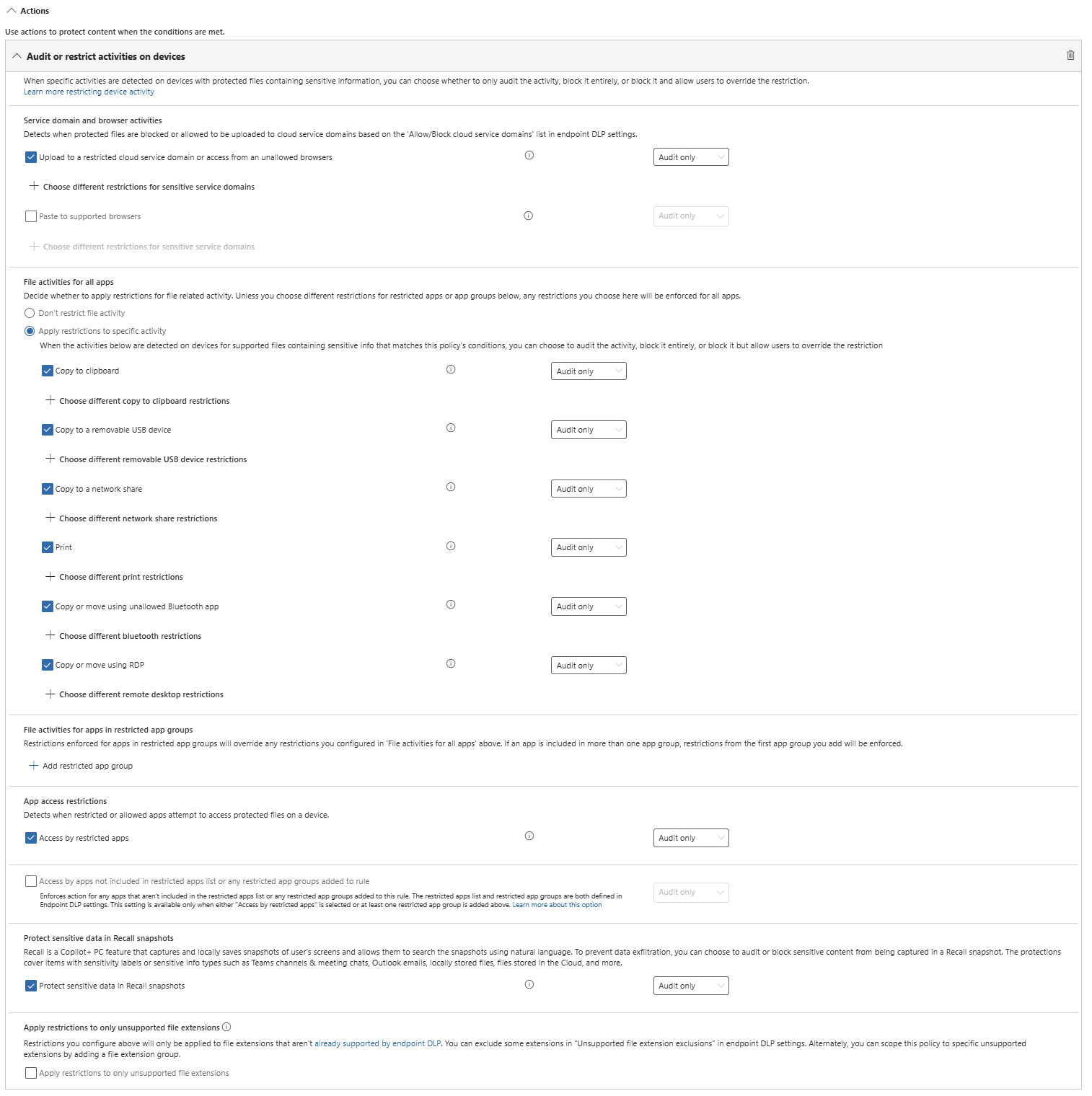
You can audit or restrict most data related activities on endpoints with these settings. It´s very recommended to configure allowed browsers and install Purview browser extensions to them. More about extensions here: DLP for Chrome (Docs have other browsers as well)
On-premises repositories
File servers can also be targeted with DLP policies. The only action available is “Restrict access or remove on-premises files”. This might be useful if you have on-prem configured to use labels as well. You could also use this to move files that contain Sensitive Info to a quarantine location or disable access to them in on-prem.
On-premises is really not my strongest areas but I´ll update the post if I find a need for configuring this.
Fabric and Power BI workspaces
Thing to note here is that you can only enable this in a policy. So if you do want to create a one policy to rule them all (which I do not advice), this can´t be in it.
Here you also only have the condition “Content contains” available as well as an Action of “Restrics access or encrypt the content in Microsoft 365 locations”. This ultimately means that you can limit visibility to Confidential reports for example but not much more at the time. Hopefully this changes later!
Microsoft 365 Copilot and Copilot Chat
This option as well as Fabric is a special one. This exists only to restrict Copilot from processing content based on Lables or Sensitive Information Types. This can be really handy in limiting oversharing in a scenario where a user that can access Confidential documents (Copilot can then too) generates some content that might contain information from the Confidential documents.
Users always should verify AI generated data but how often they really do and if they do, how do they possibly verify the source of each sentence in that generated data.
Managed cloud apps
Option is greyed out at the moment but I´ll update here once I have tested it.
Azure AI Foundry
Again the similar story to Fabric and Copilot. You can restrict what data can be used but you can also protect interaction if the users Adaptive Protection level (Insider Risk Management) is of certain category.
Common mistakes
There are a few things that is good to take into consideration when working with DLPs. This is the first step that really has impact on users after all.
DLP gets built before the label model is usable
That usually creates more policy noise than protection.
Too many workloads on day one
You do not need Exchange, SharePoint, OneDrive, Teams, devices, and everything else at once just because the portal lets you select them.
Always remember with cybersecurity controls that some is better than none and if you´ve managed this far without these controls, you´ll manage a bit longer too.
Turning on blocking too early
Simulation and pilot feedback exist so that production users do not become your test method.
It´s good to first implement audit policies as well with policy tips before cranking down the block policies.
Treating overrides like a detail
Override rules are part of the control design, not a small checkbox someone can think about later.
No incident ownership
If alerts fire and nobody knows who reviews them, you do not have DLP operations. You have background noise.
Conclusion
Sensitivity labels tell the platform what content means. DLP is where that meaning starts changing what users can actually do with the content.
I think the safest way to implement Microsoft Purview DLP is to start from a small set of business-critical scenarios, design clear policy intent, run simulation first, and treat the incident workflow as part of the rollout rather than a follow-up task.
If you want the broader context, start with my earlier post Microsoft Purview: What Is It and Why Do I Need It?. If you are working through this series in order, the previous step is Microsoft Purview Sensitivity Labels, Part 1: How to Get Started and Reach a Fully Labeled Environment. The next step is retention and records, because once classification and enforcement exist, lifecycle decisions stop being avoidable.